
Introduction
Prerequisites
Before you start configuring, make sure that:
-
Claude Code is installed and its basic configuration is done
-
You have a Moonshot AI open platform account
-
You have downloaded and installed Claude Cowork
Get a Kimi API Key
Step 1: Go to the Moonshot open platform
Go to the API platform and log in to your account.
Step 2: Create an API Key
On the API Keys management page, click to create a new API Key. I recommend choosing the default project.
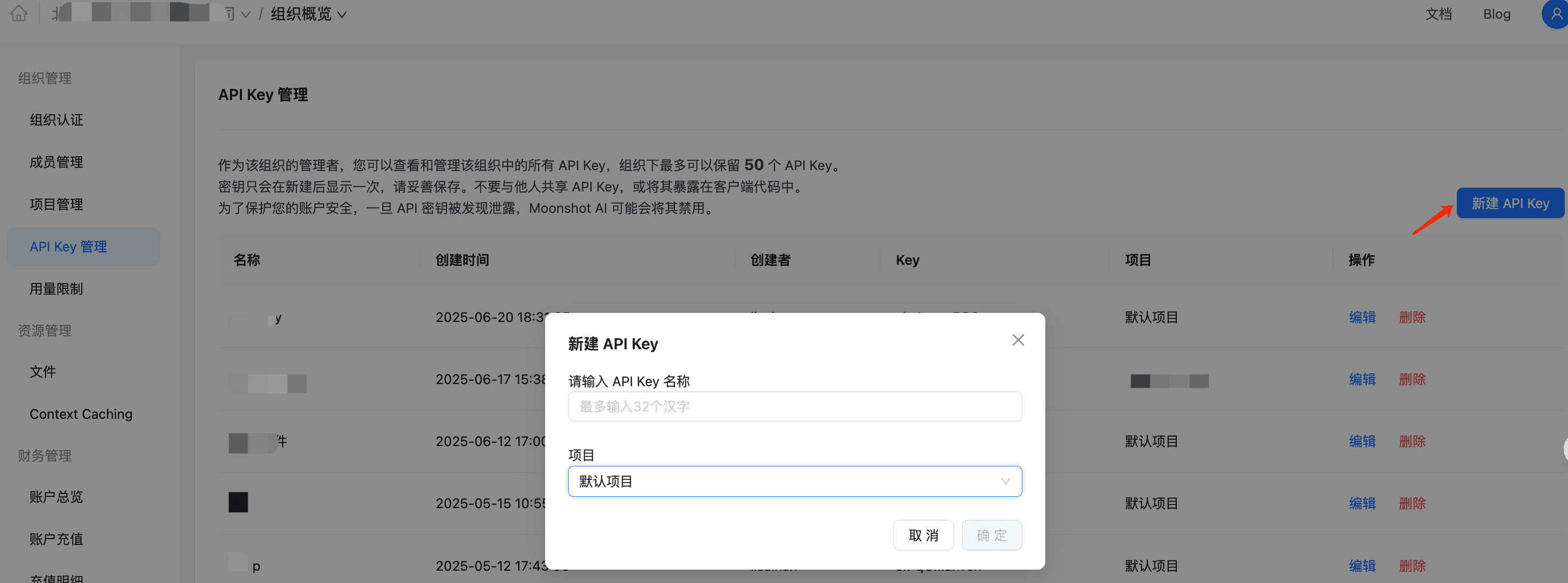
Step 3: Save the API Key
Once it's created, store your API Key somewhere safe. For security reasons, the API Key is only shown once.
Install Claude Cowork
Download the app
Go to the Claude Cowork GitHub Releases page and download the version for your operating system:
-
macOS: download the
.dmgfile -
Windows: download the
.exeinstaller -
Linux: download the
.AppImageor.debpackage
Install
Install the app following the standard procedure for your operating system.
Configure Claude Cowork to use Kimi K2
Claude Cowork configures which AI model it uses through environment variables. Because it is fully compatible with Claude Code's configuration, we can point it at the Kimi K2 model by setting environment variables.
Option 1: use kimi-k2-thinking-turbo (recommended)
This is the fast version with thinking capability, suitable for most scenarios.
macOS and Linux
Open a terminal and run the following commands:
bashexport ANTHROPIC_API_KEY="your-moonshot-api-key" export ANTHROPIC_BASE_URL="https://api.moonshot.cn/v1" export ANTHROPIC_MODEL="kimi-k2-thinking-turbo"
Then launch Claude Cowork from the same terminal window:
bashopen -a "Claude Cowork"
Windows
Open Command Prompt (CMD) and run:
set ANTHROPIC_API_KEY=your-moonshot-api-key set ANTHROPIC_BASE_URL=https://api.moonshot.cn/v1 set ANTHROPIC_MODEL=kimi-k2-thinking-turbo
Then launch Claude Cowork from the same command-line window.
Or use PowerShell:
powershell$env:ANTHROPIC_API_KEY="your-moonshot-api-key" $env:ANTHROPIC_BASE_URL="https://api.moonshot.cn/v1" $env:ANTHROPIC_MODEL="kimi-k2-thinking-turbo"
Option 2: use kimi-k2-turbo-preview
This is the fast version without thinking capability; it responds faster (up to 100 tokens/s).
macOS and Linux
bashexport ANTHROPIC_API_KEY="your-moonshot-api-key" export ANTHROPIC_BASE_URL="https://api.moonshot.cn/v1" export ANTHROPIC_MODEL="kimi-k2-turbo-preview"
Windows
set ANTHROPIC_API_KEY=your-moonshot-api-key set ANTHROPIC_BASE_URL=https://api.moonshot.cn/v1 set ANTHROPIC_MODEL=kimi-k2-turbo-preview
Option 3: use kimi-k2-0905-preview
This is the standard version, strong at coding and suited to long-running scenarios.
macOS and Linux
bashexport ANTHROPIC_API_KEY="your-moonshot-api-key" export ANTHROPIC_BASE_URL="https://api.moonshot.cn/v1" export ANTHROPIC_MODEL="kimi-k2-0905-preview"
Windows
set ANTHROPIC_API_KEY=your-moonshot-api-key set ANTHROPIC_BASE_URL=https://api.moonshot.cn/v1 set ANTHROPIC_MODEL=kimi-k2-0905-preview
Getting started
Once configuration is done, you can start using Claude Cowork! Here are a few usage tips:
Create a new session
-
Create a new session in Claude Cowork
-
Specify a working directory (this can be your project folder)
-
Start talking to the AI
Common use cases
File management
请帮我整理这个文件夹,把所有图片移动到 images 子文件夹中
Learning and Q&A
请解释一下这段代码的工作原理
Session management
One of Claude Cowork's big advantages is its solid session management:
-
All conversation history is saved automatically in a local SQLite database
-
You can resume an earlier conversation at any time
-
Sessions you no longer need can be deleted
-
Each session can have its own working directory
Permission control
When the AI needs to perform a sensitive operation (such as deleting files or changing system settings), Claude Cowork pops up a confirmation dialog where you can choose:
-
Allow: perform the operation
-
Deny: skip the operation
-
View details: see exactly what the operation does
This gives you full control over what the AI does.
Summary
With this tutorial you've learned how to configure the Kimi K2 model for use in Claude Cowork. This combination gives you:
-
Strong AI capability: Kimi K2's code generation, agent and thinking abilities
-
A great user experience: Claude Cowork's graphical interface and session management
-
Flexible configuration: choose different model versions according to your needs
-
Cost control: avoid unexpected spending through budget settings
Remember these key points:
-
Choose the right model for the task (thinking, turbo or standard)
-
Set a daily spending budget to keep costs under control
-
Keep monitoring usage and deal with anomalies promptly
-
Make full use of Claude Cowork's session management and permission control features
Now go enjoy the productivity boost an AI assistant brings! If you run into problems, refer to the Moonshot AI official docs or the Claude Cowork GitHub repository.